Set the charge you want to keep
Set a work duration and the charge you want left at the end. With enough readings, CellPilot estimates whether you might miss the target and indicates gaps in observation.
CellPilot
macOS
A battery workbench for MacBook. Set a runtime goal before leaving, compare two unplugged sessions, then review the readings you actually captured.
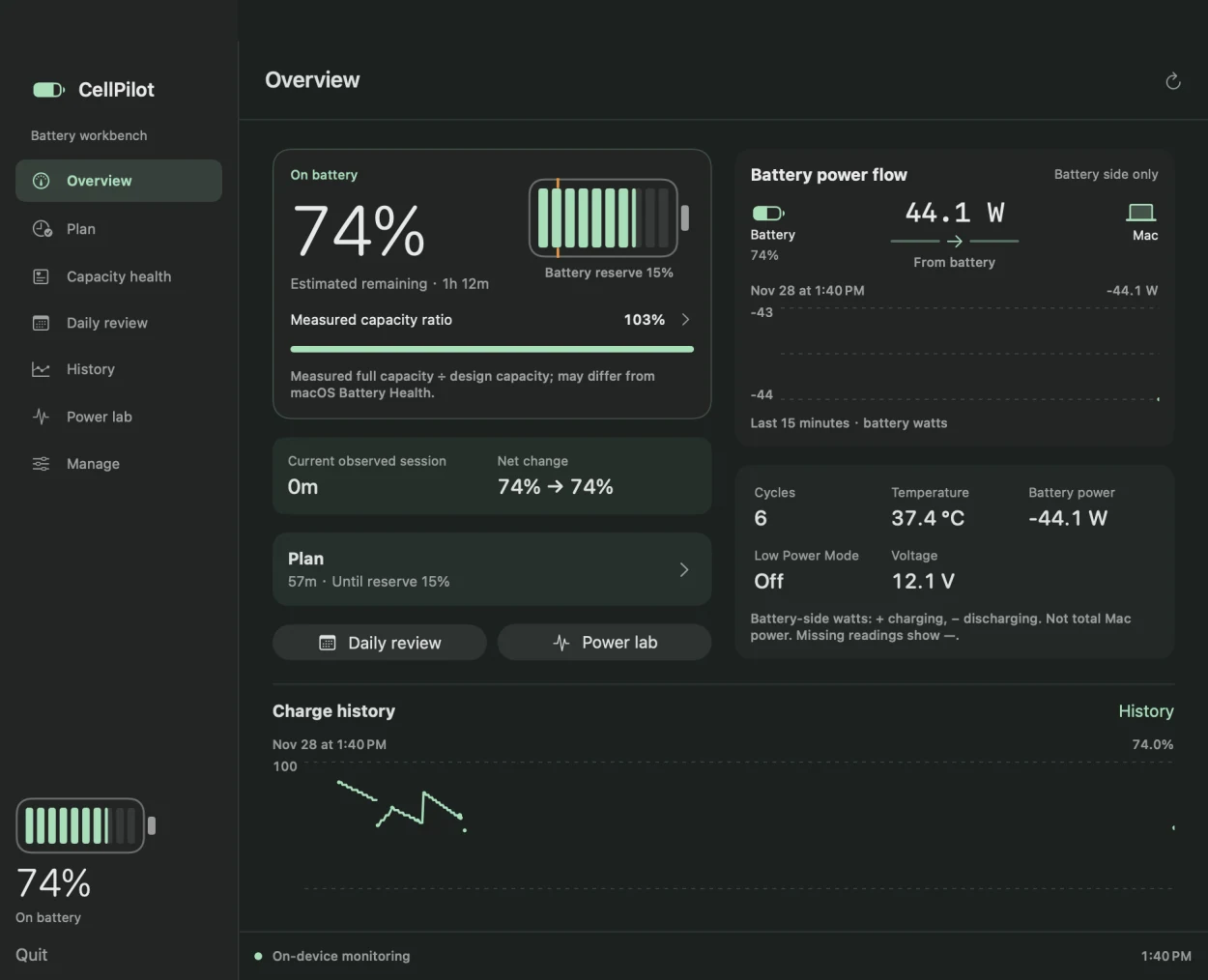
App interface · sample data
Overview brings charge, power source and battery-side watts together so you can tell what the battery is doing now.
Sample data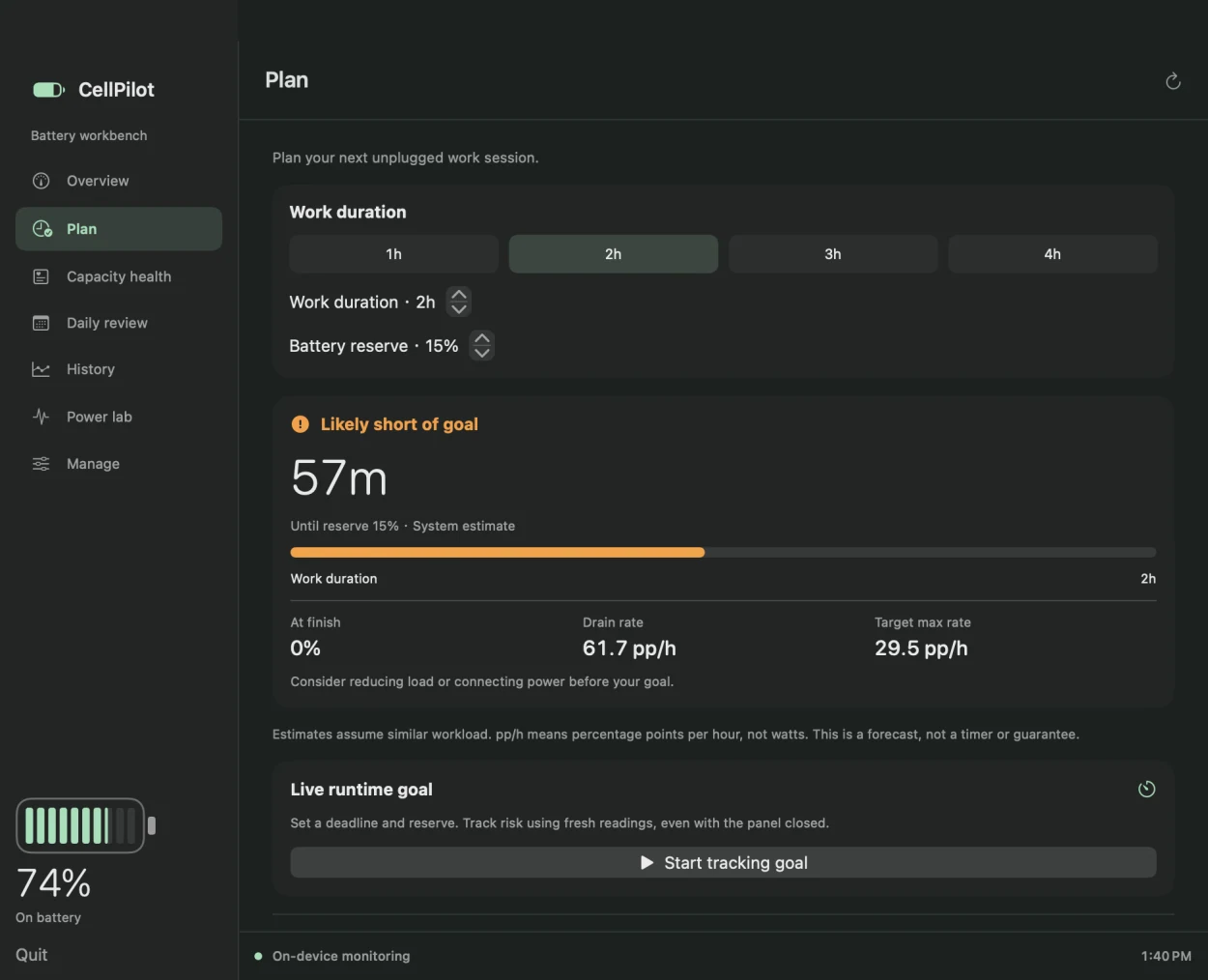
Set a work duration and the charge you want left to turn an estimate into a concrete goal.
Sample data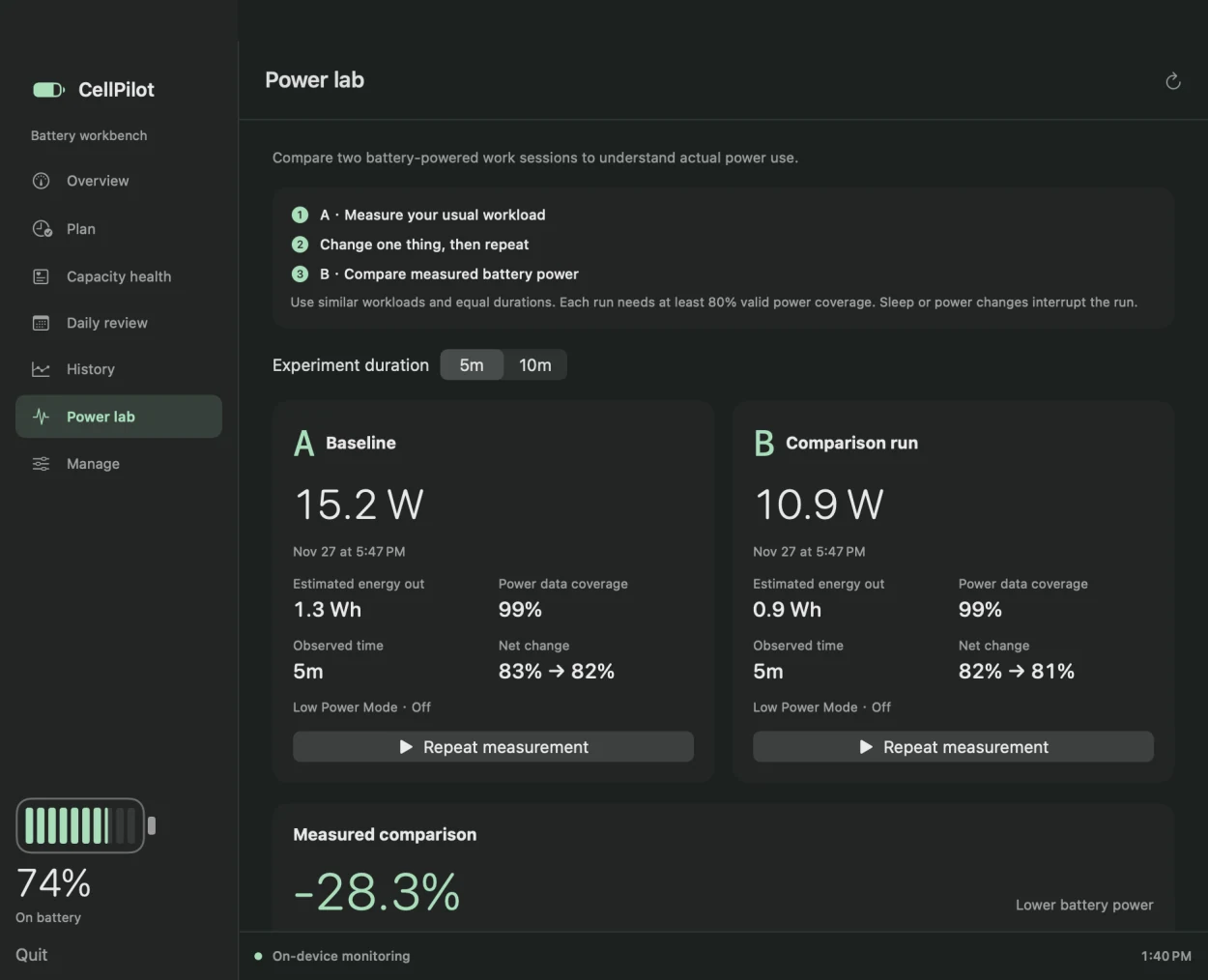
Measure your usual configuration, change one setting such as brightness, and compare watts and sample coverage.
Sample data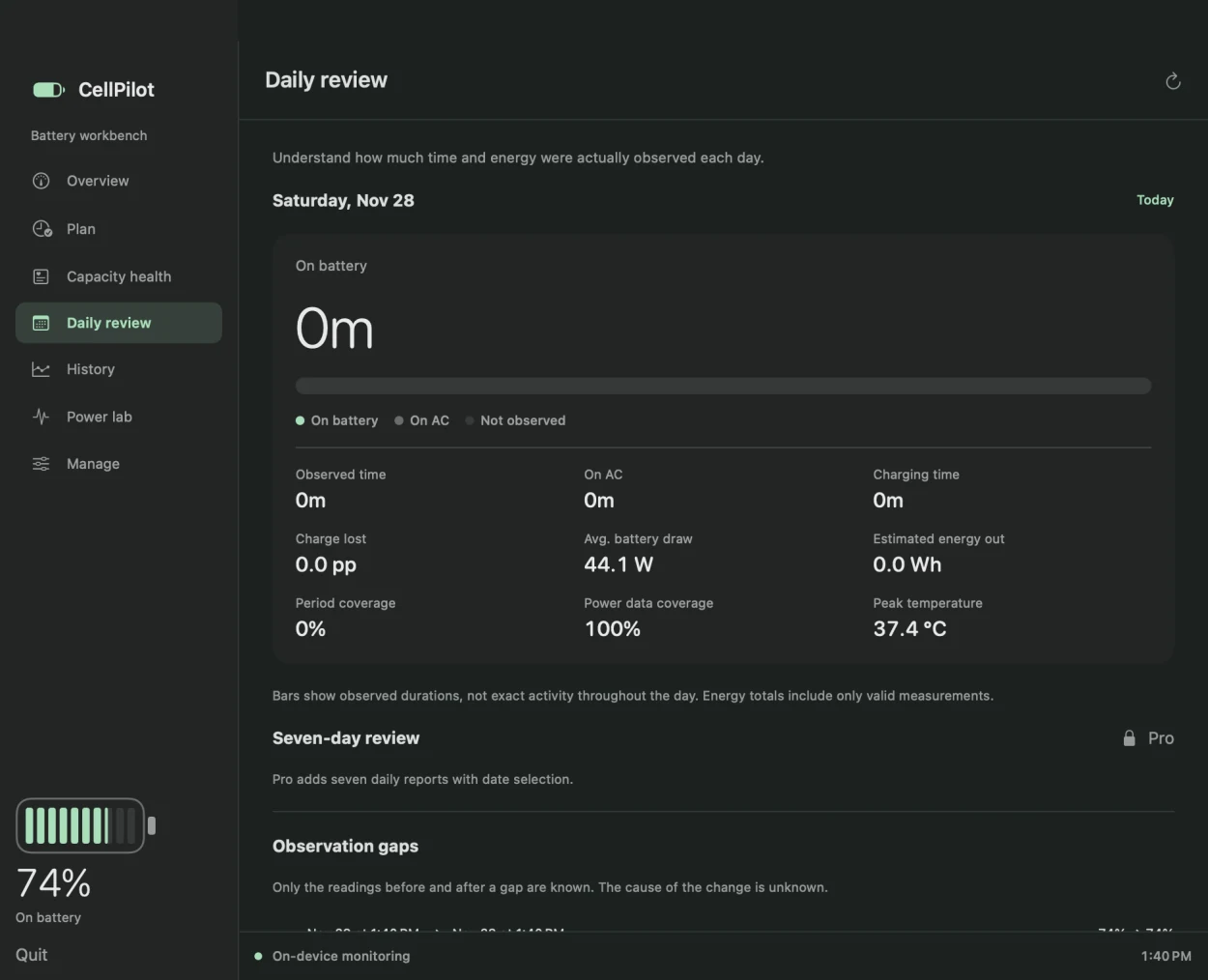
The daily review distinguishes observed battery use from gaps, so sleep or missing readings don’t look like zero consumption.
Sample data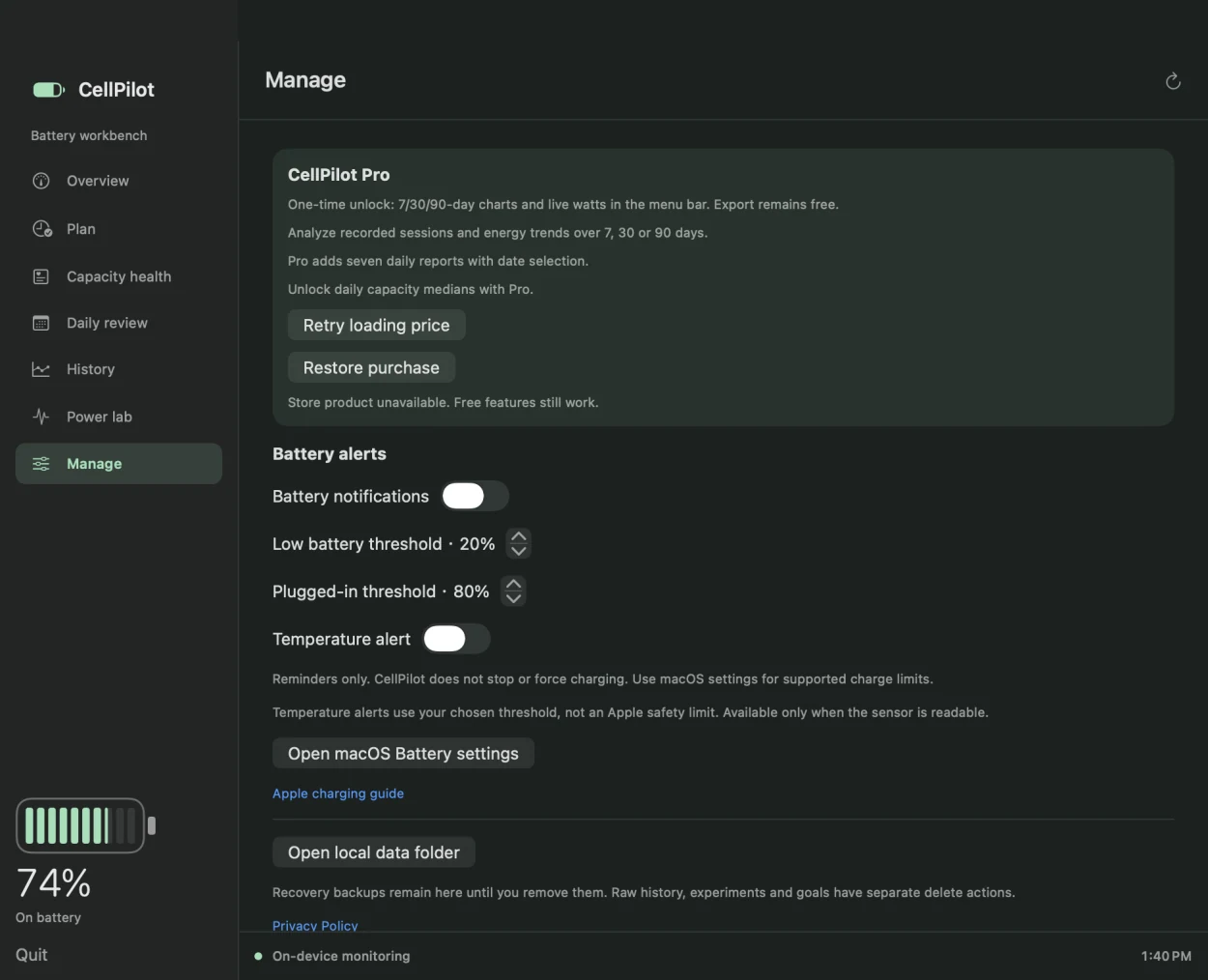
Manage alerts and history, or review the one-time Pro option.
Sample dataSet a work duration and the charge you want left at the end. With enough readings, CellPilot estimates whether you might miss the target and indicates gaps in observation.
Run two sessions on battery, for example at different display brightness levels. Power Lab reports battery-side watts and valid sample coverage so you can assess the two sessions.
The daily report distinguishes observed periods from gaps. Export raw CSV for free. A one-time CellPilot Pro unlock adds longer history, seven-day reports and capacity trends.
Check charge and power source from the menu bar, then open the workbench for health, history or an experiment. History can show metrics such as charge, power and capacity. Available readings depend on your Mac and its current state.
Set a target duration and reserve before leaving. Power Lab compares actual battery power over two equal five- or ten-minute sessions. Coverage appears beside the result so you can see whether gaps such as sleep affected the comparison.
Daily reports distinguish observed periods from gaps. CSV export is available for basic history. The one-time CellPilot Pro unlock adds longer history, seven-day reports and capacity trends. The power value comes from the Mac’s battery reading.
Power Lab measures power at the battery for the Mac as a whole. Change one setting or workload at a time to make comparisons easier to interpret.
Sleep and other periods without samples appear as gaps. Compare sampling coverage alongside power when reviewing two sessions.